Google Docs to WordPress: Paste HTML Without Breaking Your Layout
To move a Google Doc into WordPress without breaking your layout, convert the content to clean HTML first, then paste it into a custom HTML block. That keeps headings, lists, and text looking the way your theme intends.
Writing in Google Docs is comfortable, and publishing in WordPress is the goal for millions of people. The trouble starts the moment you paste. Fonts change, headings lose their style, and spacing falls apart. The cause is not WordPress. It is the pile of inline styles Google copies along with your text. This guide shows you how to get from a Google Doc to a polished WordPress post in a few steps.
Why Google Docs content breaks WordPress layouts
Google Docs records formatting as inline styles. When you paste straight into WordPress, the editor keeps those styles. Your theme also applies its own styles to headings, paragraphs, and links. The two sets of rules clash, and the browser has to pick. The result is inconsistent text, wrong colors, and spacing that does not match the rest of your site.
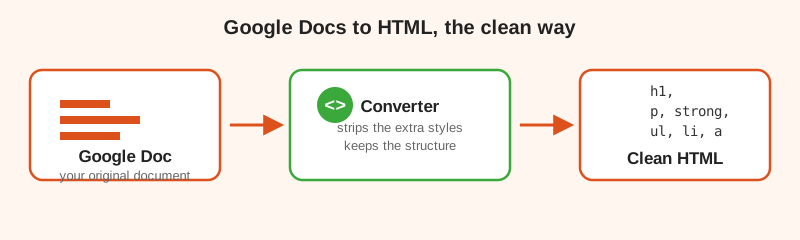
Clean HTML fixes this. Instead of carrying inline styles, it uses plain semantic tags. Your theme handles the look, so the pasted content blends right in.
How to paste Google Docs into WordPress the right way
- Open your document in Google Docs and copy the content.
- Convert it to clean HTML with the free Google Docs to HTML converter.
- Copy the cleaned HTML.
- In WordPress, add a new block and choose the Custom HTML block.
- Paste the HTML and preview the post.
That is the whole flow. The custom HTML block tells WordPress to render your code as written, and because the code is clean, the theme styles it properly.
When to use the block editor instead
Sometimes you do not need to keep every structure detail. If you only want the words, the paragraph and heading blocks in the WordPress editor are a fine home for them. Copy your content and paste it in, then rebuild the structure block by block. This gives you full control over the final layout, at the cost of a little more manual work.
Handling images from Google Docs in WordPress
Images do not travel well in a copy and paste. Save the images from your document, then upload them to your WordPress media library and insert them into the post. For a document heavy with images, the download as Web Page option from Google Docs keeps the images and HTML together, so you can upload them in one go.
What to check before you publish
Spend a minute on the preview. Confirm the headings are the size your theme uses, click a few links to make sure they work, and check that lists line up. Clean HTML removes most surprises, but a quick look costs almost no time and prevents a broken post.
Convert before you paste
Get clean HTML from your Google Doc and paste it into WordPress with confidence.
Use the free converterWordPress FAQ
Why does my Google Doc look wrong in WordPress?
Google Docs brings along extra inline styles that fight with your theme. Converting the content to clean HTML first fixes the look.
How do I paste Google Docs into WordPress without breaking the layout?
Copy the content, convert it to clean HTML with a converter, then paste the HTML into the WordPress editor using the custom HTML block.
What is the best way to move a Google Doc to WordPress?
For words, use clean HTML. For documents with many images, download as a Web Page from Google Docs and upload the files with your post.
Will clean HTML work with the WordPress block editor?
Yes. Paste the HTML into a custom HTML block. It keeps the structure and lets your theme style it the way it should.