How to Get Clean HTML from Google Docs
You get clean HTML from Google Docs by copying the content into a converter that strips inline styles and keeps the structure. The result is tidy code that pastes neatly into WordPress, email, or any website.
Open the HTML behind a Google Docs export and you will see why so many people complain. Long style attributes, nested span tags, and repeated rules pile up behind every paragraph. None of that is visible in the editor, but all of it shows up in the code. This guide explains what causes the mess and how to get clean HTML from Google Docs every time.
Why Google Docs writes messy code
Google Docs is a word processor, and it stores formatting in its own way. Fonts, colors, spacing, and alignment all become inline styles. Every time you export or copy, those styles travel with the text. It makes the file larger than it needs to be and harder to read.
The bigger problem is what happens on your website. When you paste messy HTML into WordPress or another builder, those inline styles can clash with your theme. Headings change size, colors shift, and spacing looks broken. Getting clean HTML from Google Docs avoids that fight completely.
The fastest way to get clean HTML from Google Docs
Use a converter built for this job. It reads your copied content and writes it back as simple, semantic HTML.
- Select everything in your Google Doc and copy it.
- Open the Google Docs to HTML converter.
- Paste the content into the editor.
- Click Copy to grab the cleaned HTML.
- Paste it into your site and publish.
The converter keeps the parts that matter. Headings stay as h1 and h2 tags. Lists stay as lists. Links keep their destinations. Bold and italic stay as strong and em. Everything else, the clutter, gets dropped.
What clean HTML from Google Docs looks like
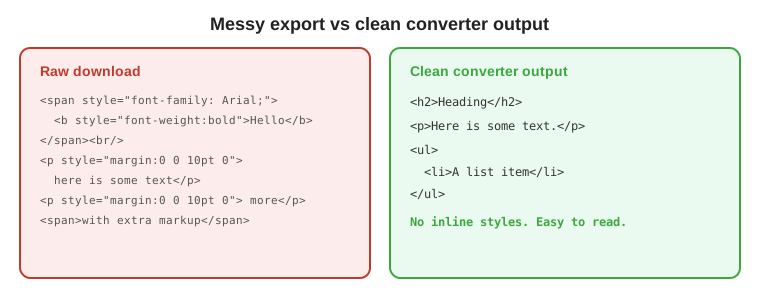
Here is the difference in practice. A raw export might wrap a simple paragraph in a span with a long style attribute. Clean HTML uses a plain paragraph tag. A heading that comes out with inline font and color rules becomes a simple h2 tag. The clean version is shorter, faster to load, and far easier for your theme to style.
Cleaning HTML by hand, when you only need a snippet
If you have a short piece of text, you can clean it in an HTML editor yourself. Look for the patterns Google adds and remove them. Drop empty spans, delete long style attributes, and keep the semantic tags. This works, but it does not scale. On a long document you will spend more time cleaning than writing. A converter handles the whole thing in one click.
Keep images out of the copy paste
Copy and paste moves text and formatting, but it usually leaves images behind. Save the images you need and upload them to your site separately. That way the pictures and the clean HTML from your doc both end up in the right place.
See the difference for yourself
Paste a document into the free converter and get clean HTML instantly.
Get clean HTML nowClean HTML FAQ
Why does Google Docs produce messy HTML?
Google Docs writes hidden inline styles and span tags to describe formatting. When you export or paste the content, all that extra code comes along.
How do I get clean HTML from Google Docs?
Copy the content and paste it into a Google Docs to HTML converter. It keeps headings, lists, and links while removing the inline styles.
What does clean HTML look like?
Clean HTML uses simple tags such as h1, h2, p, ul, li, strong, em, and a, with no long style attributes. It is short and easy to read.
Can I clean Google Docs HTML by hand?
Yes, in an HTML editor, but it takes time on long documents. A converter does the same job in seconds.