Google Docs to HTML for Email Campaigns
To send a Google Doc as an HTML email, write the content in Docs, convert it to clean HTML, and paste that into your email tool. Clean HTML is the most reliable way to keep the formatting working in Gmail and Outlook.
Email is stricter than a website. What works in a browser can fall apart in an inbox. Google Docs writes formatting that most email clients do not handle well, so pasting a document straight into an email often produces a mess. The fix is the same as for any website: get clean HTML first. This guide walks through the workflow and the pitfalls.
Why email clients break Google Docs formatting
Email clients support a limited set of HTML and CSS. Google Docs produces complex inline styles, and clients either ignore them or render them inconsistently. The result is headings that lose their size, text that changes color, and spacing that does not match. Clean HTML avoids this by using the simple tags that email clients understand.
How to turn a Google Doc into an HTML email
- Write and polish your content in Google Docs.
- Copy all the text.
- Convert it with the Google Docs to HTML converter.
- Copy the clean HTML.
- Paste it into your email builder or a custom HTML block, then send a test to yourself.
Always send a test email. Check it in Gmail, Outlook, and on your phone before sending to your list.
Best practices for HTML email from Google Docs
- Keep it simple. Use headings, paragraphs, links, and lists. Leave out complex layouts.
- Inline what email needs. Email clients want styling attached to the element itself, so basic inline styles are fine for buttons and text.
- No JavaScript. Most clients block it, so a static email is the safe choice.
- Check images. Images from Google Docs do not copy into HTML. Upload them to your email tool and add them to the campaign.
Using the converter for email content
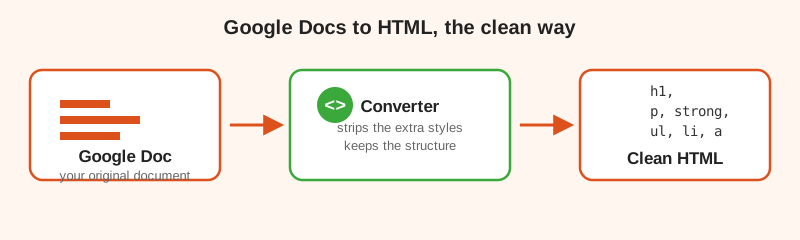
Our converter strips the extra styles and keeps the structure, which is exactly what email needs. Headings stay headings, links keep their destinations, and bold and italic stay intact. You paste the clean HTML into your email builder and the design behaves the way you expect.
Common email problems and fixes
Text and buttons look different in Outlook
Outlook is the strictest client. Test in Outlook first, and keep your design simple. Padding around buttons may need an explicit width and background color to render correctly.
Images do not appear
Images must live on a server. Upload them to your email tool, then insert them into the campaign. Do not rely on images copied from Docs.
Fonts look wrong
Email clients fall back to their own fonts. Do not depend on custom fonts. Clean, simple typography is the safest choice.
Build better emails
Start with clean HTML and your email campaigns will look right everywhere.
Convert a document for emailEmail FAQ
Can you use Google Docs to make HTML email?
Yes. Write the content in Google Docs, copy it, convert it to clean HTML, and paste the HTML into your email builder.
Why does my Google Doc email look wrong in Gmail or Outlook?
Email clients support only a limited set of styles. The inline styles Google adds are often ignored. Clean HTML uses simple markup email clients understand.
What is the best format to convert a Google Doc to for email?
Clean HTML is the most reliable. It keeps headings, links, and lists while removing the extra styles that break in email clients.
Do email clients support JavaScript in HTML email?
No. Most email clients block JavaScript. Keep your HTML email simple with basic tags and inline styling that clients actually support.