How to Convert Google Docs to HTML
You can convert a Google Doc to HTML by downloading it as a web page, or by copying the content into a converter. The fastest clean result comes from pasting your doc into a dedicated Google Docs to HTML tool.
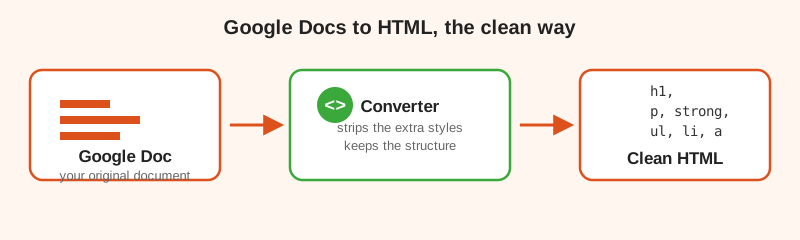
If you have ever copied a document out of Google Docs and tried to post it somewhere, you already know the problem. The text comes through, but the formatting gets messy. Links, headings, bold text, lists, and colors all behave differently than they did in the editor. HTML is how the web tells the browser what to show, and Google Docs does not write the cleanest HTML in the world. This guide walks you through every option so you can pick the one that matches how you work.
Why convert Google Docs to HTML at all?
Google Docs is a word processor, not a website builder. When you write in Docs, what you see is what you type. The moment you want that content on a website, a blog, or an email, the underlying code matters. HTML is the language that controls structure, links, images, and headings on the web. Converting your document to HTML lets you keep formatting while putting the content anywhere, without copy paste weirdness.
People convert Google Docs to HTML for a few common reasons:
- Posting to WordPress, Wix, or another content management system
- Building a landing page or a help center article
- Sending branded HTML email that actually looks right in Gmail or Outlook
- Keeping the same document as source code for a static site
Method 1: Download as a web page (fastest)
This is the quickest way, and it needs no extra tools. Open your document in Google Docs and follow these steps:
- Click File in the top menu.
- Click Download.
- Choose Web Page (.html, zipped).
- Open the downloaded ZIP file and extract it.
- Inside you will find an HTML file and a folder of images. Open the HTML file to see your doc.
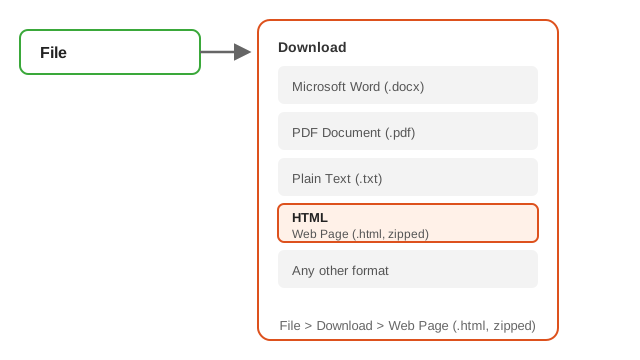
That gives you a full HTML page you can upload or open. It works, but the code is not tidy. There is a good chance the file is full of inline styles you do not need, especially if you want the content to sit inside an existing website design. For that reason, many people prefer the second method.
Method 2: Use a Google Docs to HTML converter (cleanest)
If you want code that is easy to read and easy to paste into a page, a converter is the better choice. The idea is simple. You copy the text out of Google Docs, paste it into the tool, and it returns clean HTML that keeps headings, lists, bold text, italics, and links while stripping the junk.
Here is how it works with a converter like gdoctohtml.net:
- Copy all the content from your Google Doc.
- Open the Google Docs to HTML converter.
- Paste your text into the editor.
- Click Copy to copy the clean HTML to your clipboard.
- Paste that HTML into WordPress, your site, or your email tool.
The result is shorter, tidier code. That makes it easier to work with and less likely to fight with your theme's own styles.
Method 3: Copy into an HTML editor and clean it up
For people who are comfortable with code, a plain HTML editor gives full control. You can copy the content, paste it into the editor, and then remove the extra styles by hand. This works well when you only have a short snippet, because hand cleaning a long document takes time.
When cleaning by hand, look for the patterns Google adds. Long style attributes, extra span tags around otherwise normal text, and bold or italic wrapped inside labels are the most common culprits. Remove what you do not need and keep the semantic tags like h1, p, strong, em, ul, li, and a.
What the clean HTML should look like
A clean conversion keeps the structure and drops the clutter. Here is a small example of what tidy HTML looks like compared to what a raw export often produces. Good code uses heading tags for titles and simple paragraph and link tags, with no long inline style strings cluttering things up. That is the outcome our converter is set up to deliver.
You should always double check the result before publishing. Open the page, confirm the headings are right, click a few links, and make sure images landed where they should. Ten seconds of checking saves a broken post.
Common problems and how to avoid them
Images do not come along when you copy text
Copying text from Docs brings formatting, but images often stay behind. To keep images, use the download as web page method and upload the image files alongside the HTML, or save images separately and re add them once the HTML is in place.
The font and colors change
Google Docs applies fonts and colors that a website may not support or that clash with a theme. Clean HTML usually lets the website control the look. Drop custom fonts and colors unless the brand really needs them.
Tables and floating elements break
Complex layouts do not always survive a conversion. For tables, check them carefully after pasting and rebuild them inside your CMS if they fall apart.
Final thoughts
The right method depends on what you are building. If you want a full standalone page, download as a web page. If you want tidy, portable code for a website or email, use a converter. Either way, converting Google Docs to HTML is a routine task once you know the steps. Bookmark this page for next time, or try the free converter and see how clean the result is.
Try the free converter
Paste your Google Doc and get clean HTML in one click.
Convert a Google Doc nowGoogle Docs to HTML FAQ
Can you convert a Google Doc to HTML?
Yes, in a few ways. Download the document as a Web Page from the File menu, or copy the content into an HTML converter for cleaner output.
Does Google Docs have an HTML export?
There is no single Save as button, but the Web Page (.html, zipped) download produces HTML, and converters offer an even cleaner option.
Why does my Google Doc HTML look messy?
Google Docs adds inline styles and span tags you cannot see in the editor. Those extra details come along in the HTML and make it harder to use.
What is the cleanest way to convert Google Docs to HTML?
Paste the content into a Google Docs to HTML converter that strips extra styles. Because it removes the junk, the code is tidier than a normal export.