Google Docs to HTML Converter
A Google Docs to HTML converter takes the content you copy out of Docs and returns clean, readable HTML. It keeps the important formatting and drops the extra code Google hides in the background.
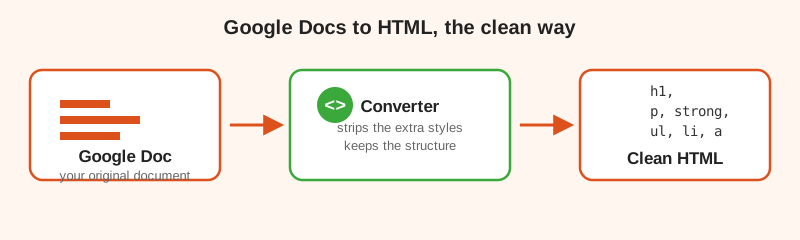
When you write in Google Docs, the program saves far more than you see. Behind every bold word and colored heading sits a trail of styling instructions. Most of that is fine for printing, but it becomes a headache the moment you move the content to the web. A converter exists to solve that exact problem. This guide explains what these tools do, what to look for, and how to get a result you can trust.
What a converter actually does under the hood
Copy text from Google Docs and offer it to a converter, and the tool reads the formatting that rode along. It then writes the same content as semantic HTML. Bold becomes a strong tag. A heading becomes an h2 tag. A list becomes ul and li tags. A link becomes an anchor tag with its destination.
At the same time, the converter strips the noise. Long style attributes, empty spans, and repeated tags that only exist to carry invisible formatting all disappear. The outcome is code that does the same job with far less clutter. That is the whole point of using a converter rather than pasting the raw output.
Why clean HTML matters
Clean HTML is easier to read and easier to maintain. If you hand the code to a developer, they will thank you. If you manage content yourself, tidy code behaves more predictably inside your website builder. It also loads faster for visitors, because there is simply less to download.
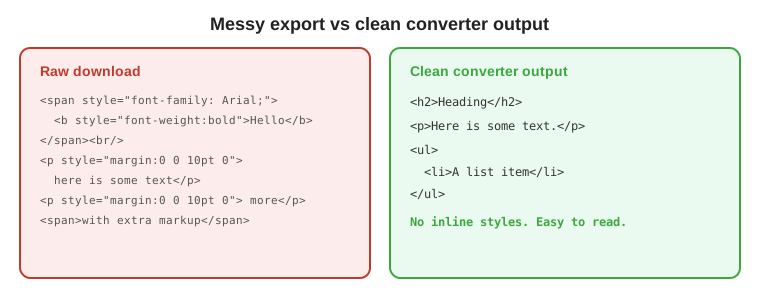
There is a practical side too. When extra styles slip into a page, they can fight with your theme. Headings change color, fonts shift, and spacing looks off. A converter removes most of that friction, so what you paste looks the way the rest of your site does.
What to look for in a converter
- It strips inline styles. The main point of the tool is to remove the clutter Google adds.
- It keeps structure. Headings, lists, bold, italics, and links should all survive.
- It is free and easy. You should not need an account or a credit card for a simple conversion.
- It works in the browser. Nothing to install, and nothing runs on a server that could see your text.
Our free Google Docs to HTML converter hits all of these points. You paste, you copy, you move on.
How to use the converter
The flow only takes a few seconds.
- Open your document in Google Docs and select all the content.
- Copy it with Ctrl+C (or Command+C on a Mac).
- Open the converter and paste into the editor.
- Click Copy to grab the clean HTML.
- Paste the HTML into your site or email tool and publish.
That is the entire process. Most people are surprised at how fast it is and how clean the result looks.
When to skip the converter and download instead
A paste based converter is the right tool for words. It is not always the right tool when your document leans on images. Images need to live on your server or in your site library, and a converter only moves text. If your doc is image heavy, download it as a Web Page from the File menu and upload both the HTML and the image files.
Choose based on what you are publishing
For a blog post, an article, or an email, a converter gives you the clean foundation you want. For a full document with many images and a specific layout, a download keeps everything together. Knowing the difference means picking the right tool for the job instead of forcing one method every time.
Put it to the test
Paste a document into the free converter and see the difference for yourself.
Try the free converterConverter FAQ
What does a Google Docs to HTML converter do?
It turns copied Google Docs content into clean HTML. It keeps headings, lists, links, bold, and italics while removing the extra inline styles.
Is there a free Google Docs to HTML converter?
Yes, gdoctohtml.net is free. Paste your content and it returns clean HTML you can copy straight into a website or email.
Why use a converter instead of pasting into WordPress?
WordPress keeps much of Google's styling, which can clash with your theme. Clean HTML strips that clutter so your content matches your design.
Will a converter keep my images?
Text formatting survives, but images usually do not. Save and upload your images separately for a reliable result.