How to Export a Google Doc as HTML
You can export a Google Doc as HTML by downloading it as a Web Page from Google Drive, or by copying the content into a converter for cleaner code. Both methods take under a minute.
There are two situations where you need an HTML version of a Google Doc. You either want the whole document as a page you can host yourself, or you want the content clean enough to drop into an existing website. This guide covers both, so you can export a Google Doc as HTML whichever way suits you.
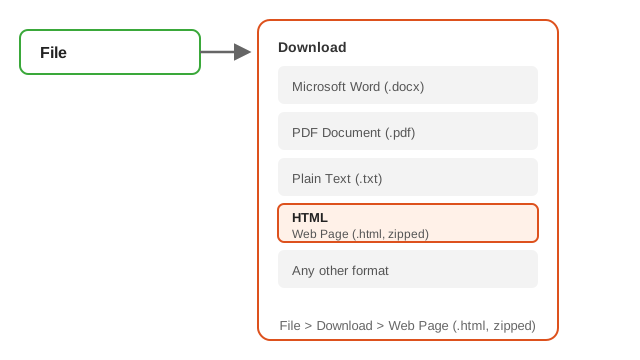
Method 1: Export the whole document as a web page
This is the built in way to export a Google Doc as HTML. It keeps everything in one package, including images.
- Open the document in Google Docs from your Drive.
- Click File, then Download.
- Choose Web Page (.html, zipped).
- Unzip the downloaded file. You will find an HTML document and a folder of images.
- Upload the HTML file and the image folder together so the pictures keep working.
The exported HTML shows the document as its own page. If you want to place the content inside an existing site design, you will likely want to strip the extra styling, which is where the second method helps.
Method 2: Export clean HTML with a converter
When you only need the content, not a whole page, a converter gives the cleanest result. It turns your copied document into tidy HTML with headings, lists, links, bold, and italics, and it removes the long inline style strings that Google adds.
- Select all the text in your Google Doc and copy it.
- Open the Google Docs to HTML converter.
- Paste the text into the editor.
- Click Copy to grab the clean HTML.
- Paste it into WordPress, your site, or your email tool.
This method avoids the zip file entirely and gives you code that plays nicely with the rest of your website.
How to export a Google Doc as HTML from your phone
The Google Docs app on Android and iPhone keeps things simpler. Open the document, tap the three dot menu, then choose Share and export. From there you can pick a format, and Google uploads or downloads the file for you. Note that the mobile app does not offer the zipped HTML option in every version, so for HTML you may still need the desktop site in a browser.
Common export problems and fixes
The images are missing after unzipping
Keep the image folder next to the HTML file and upload both to the same place. Moving the HTML without its images breaks the pictures.
The exported page looks plain
That is normal. The HTML page is meant to be styled by your website. Use a converter to get cleaner code, then match it to your theme.
The download is a zip, not HTML
Google always packages the HTML export as a zip. Unzip it to reach the actual file, or use a converter to skip the zip step.
Export FAQ
Can you export a Google Doc as HTML?
Yes. Open the File menu, choose Download, then select Web Page (.html, zipped). Unzip the file to get the HTML and its images.
Where is the export option in Google Docs?
Click File in the top menu, then Download. The export formats appear in the list, including Web Page (.html, zipped).
Does exporting a Google Doc as HTML keep the formatting?
Most formatting carries over, but the exported code includes many extra inline styles. A converter cleans that up for a tidier result.
How do I export a Google Doc as HTML without a zip file?
Google always downloads this format as a zip. Copy the content into a converter instead, and you get clean HTML without any zip.